Select one layered Photoshop file from Motion Prep.
Motion Prep docs
Install Motion Prep in a few minutes.
Close After Effects, run the installer, reopen After Effects and test one PSD or PSB. Motion Prep keeps the original import intact and creates a prepared comp when the handoff needs cleanup.
Where it appears
Extensions menu
In After Effects, open Window > Extensions > Motion Prep. If it is not there, restart After Effects once.
Install
The short path.
01Close After Effects
The Extensions menu refreshes only after After Effects restarts.
02Open the ZIP
Open the MotionPrep folder and read START_HERE.txt if you want the shortest guide.
03Run the installer
Double-click install-motion-prep.command and wait for the OK message.
04Open Motion Prep
Launch After Effects, then go to Window > Extensions > Motion Prep.
First 10 minutes
First 10 minutes: install, open, test.
Use one messy PSD or PSB first. Do not start by changing your whole pipeline.
01InstallAfter Effects closed.
02OpenWindow > Extensions.
03Chooseone PSD/PSB handoff.
04Compareprepared comp vs original.
macOS
If macOS blocks the installer.
Motion Prep currently ships with a macOS command installer. If macOS asks for confirmation, only continue if you downloaded Motion Prep from the official purchase link.
Asked to confirm: choose Open if you trust the package.
Blocked by macOS: open System Settings > Privacy & Security and choose Open Anyway for the Motion Prep command.
Need the package guide: open Docs/INSTALL_HELP.txt inside the MotionPrep folder.
What it installs: the panel is copied to your Adobe CEP extensions folder. Your source files are not modified.
Use
Use one button first.
Start with a PSD or PSB that normally arrives full of groups, backup versions or closed precomps. Use AI only when After Effects imports usable composition structure.
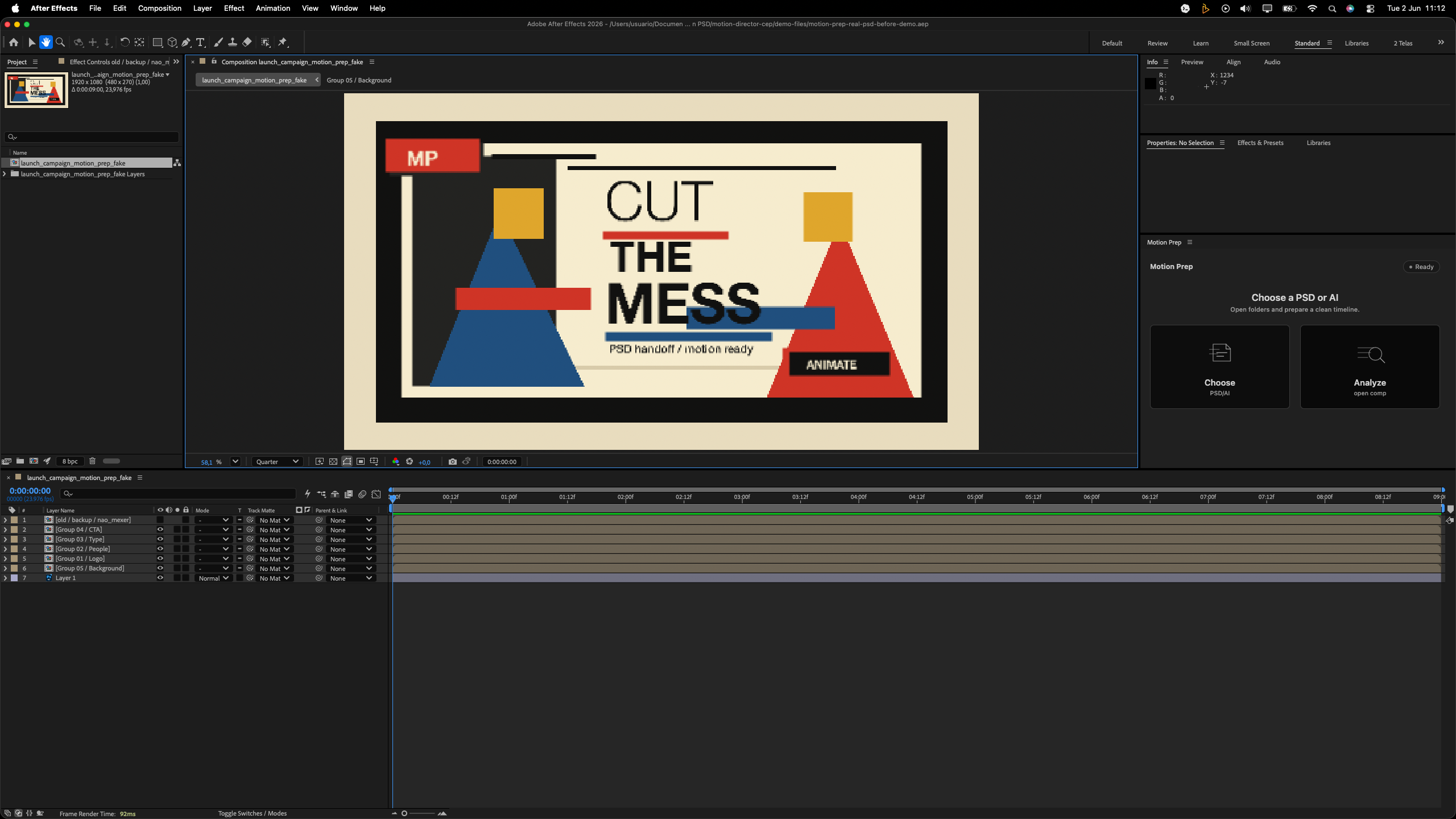
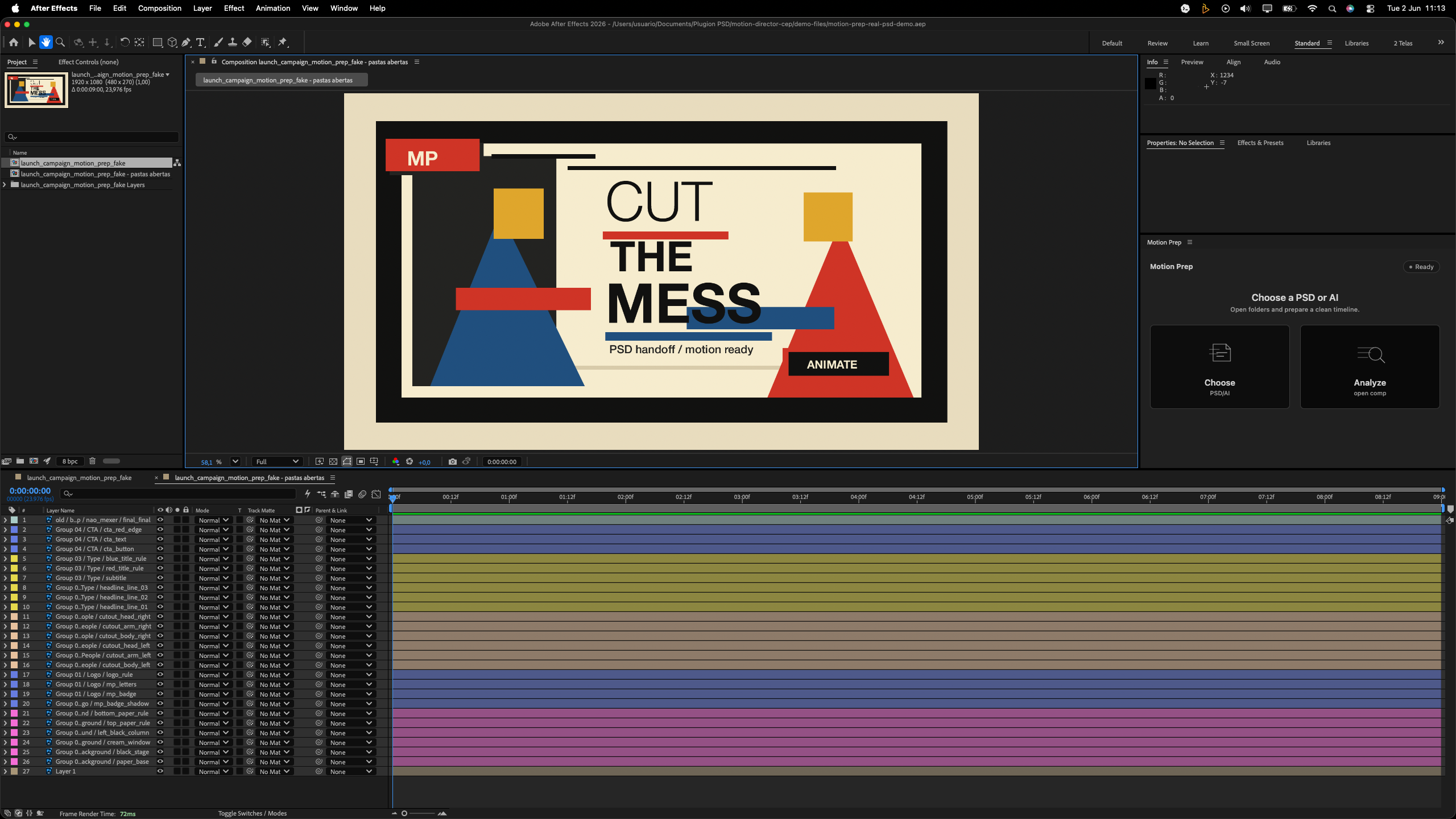
When After Effects asks, import the file as a composition.
Motion Prep shows Open folders, Separate versions or No prep needed.
Work in the prepared timeline. Keep the original import untouched.
What good looks like
You should end with a calmer timeline.
Original preserved: the imported comp stays as your untouched reference.
Prepared comp created: nested folder layers are exposed when Motion Prep can safely open them.
Colors by folder: related layers receive matching label colors for faster scanning.
Simple result: check the final layer and folder counts before animating.
Troubleshooting
If something feels stuck.
Panel not visible: restart After Effects and check Window > Extensions, not the Effects menu.
Install blocked: read Docs/INSTALL_HELP.txt in the MotionPrep folder.
File imports strangely: compare the original comp with the prepared comp before animating.
Still blocked: send screenshots and file context through the support template.